
Kitchen Recipes tutorial
This recipes tutorial shows how to use the site to get recipes and meal plans. It focuses on what you do as a customer, not on how the plugin works.
Quick Anchor Links
Contents
1) Getting Started

- Create an account or log in.
- Open the Recipes Dashboard page (you’ll see tabs like Random, Search, Meal Plans, My Recipes, My Plans, Points).
- Your current points balance is visible at the top.
1.1) About This Service
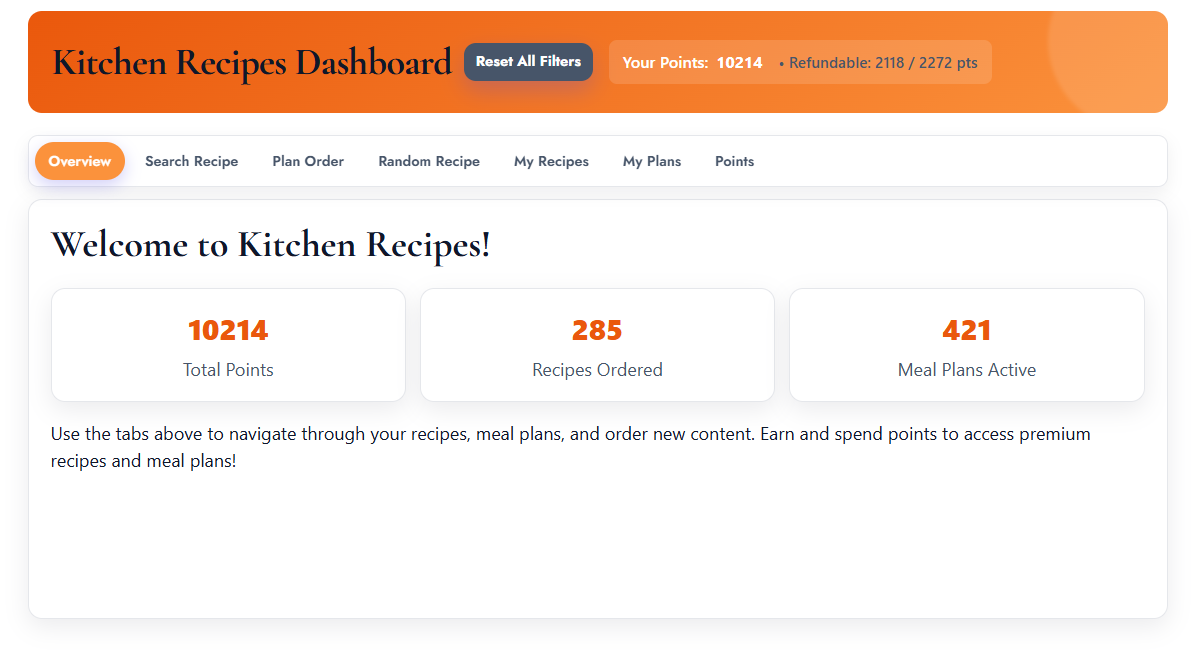
This recipes tutorial helps you discover recipes tailored to your preferences and order structured meal plans for a number of days. You can adjust preferences (cuisine, diet, ingredients) and get detailed nutrition. Your actions are guided by a simple points system, and you can save recipes and plans for later.
2) Points: What They Are
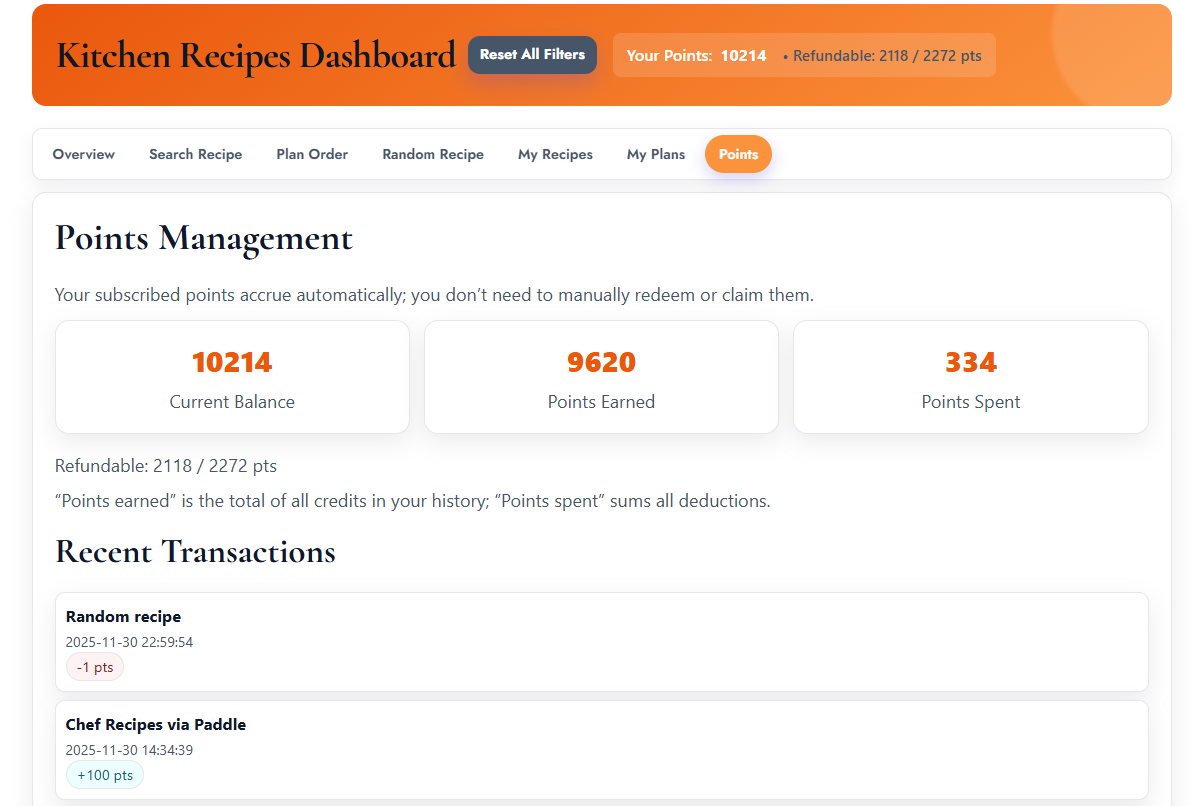
- Certain actions (like full recipe searches or ordering meal plans) may cost points.
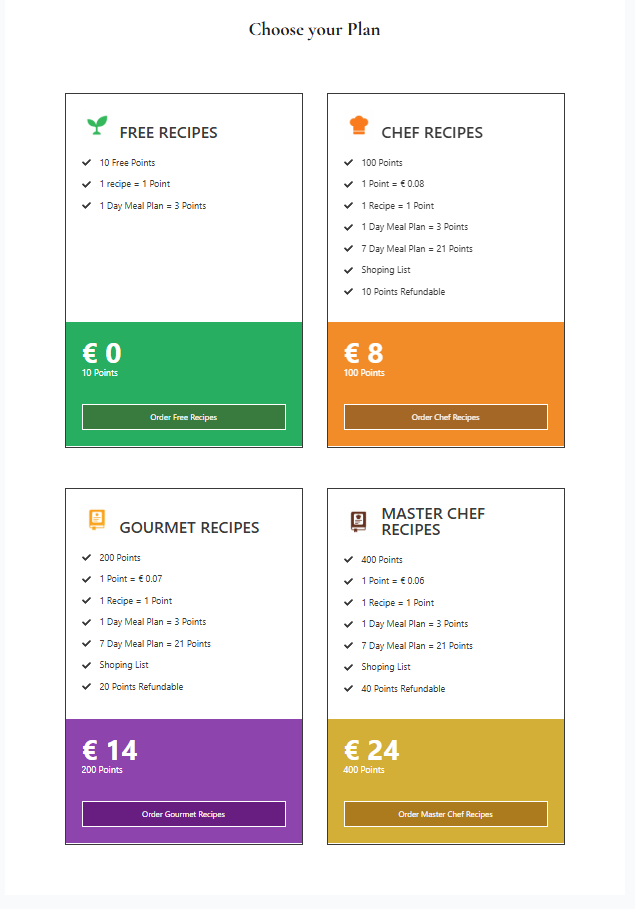
- You can buy more points from the Points tab or the pricing page.
- Your history shows points earned and spent.
3) Random Recipe
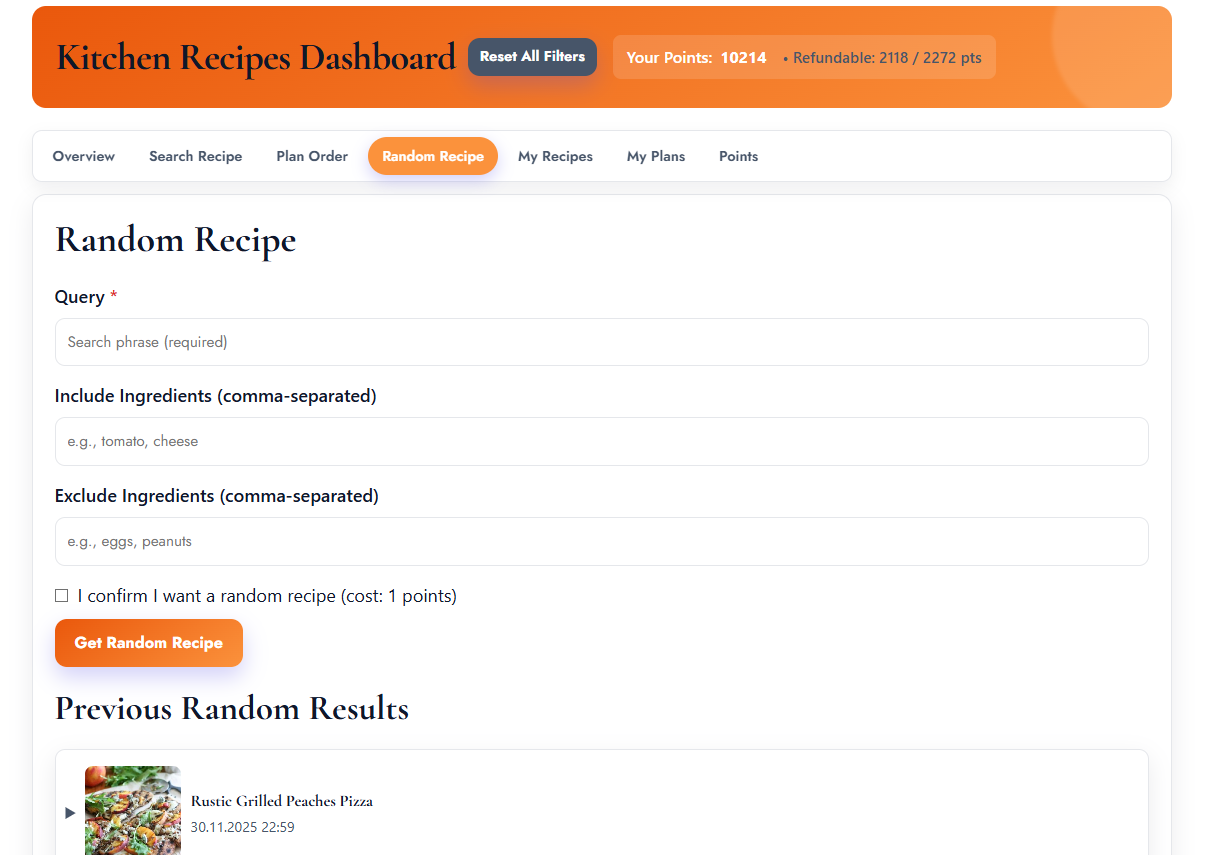
- Open the Random tab.
- Choose simple preferences (e.g., include/exclude ingredients or tags).
- Confirm the point cost if shown, then click “Get Random Recipe”.
- Review the result (summary, ingredients, nutrition, instructions).
- Use “Try Again” to fetch another, or “Change this recipe (refund)” if available shortly after purchase.
4) Search Recipes
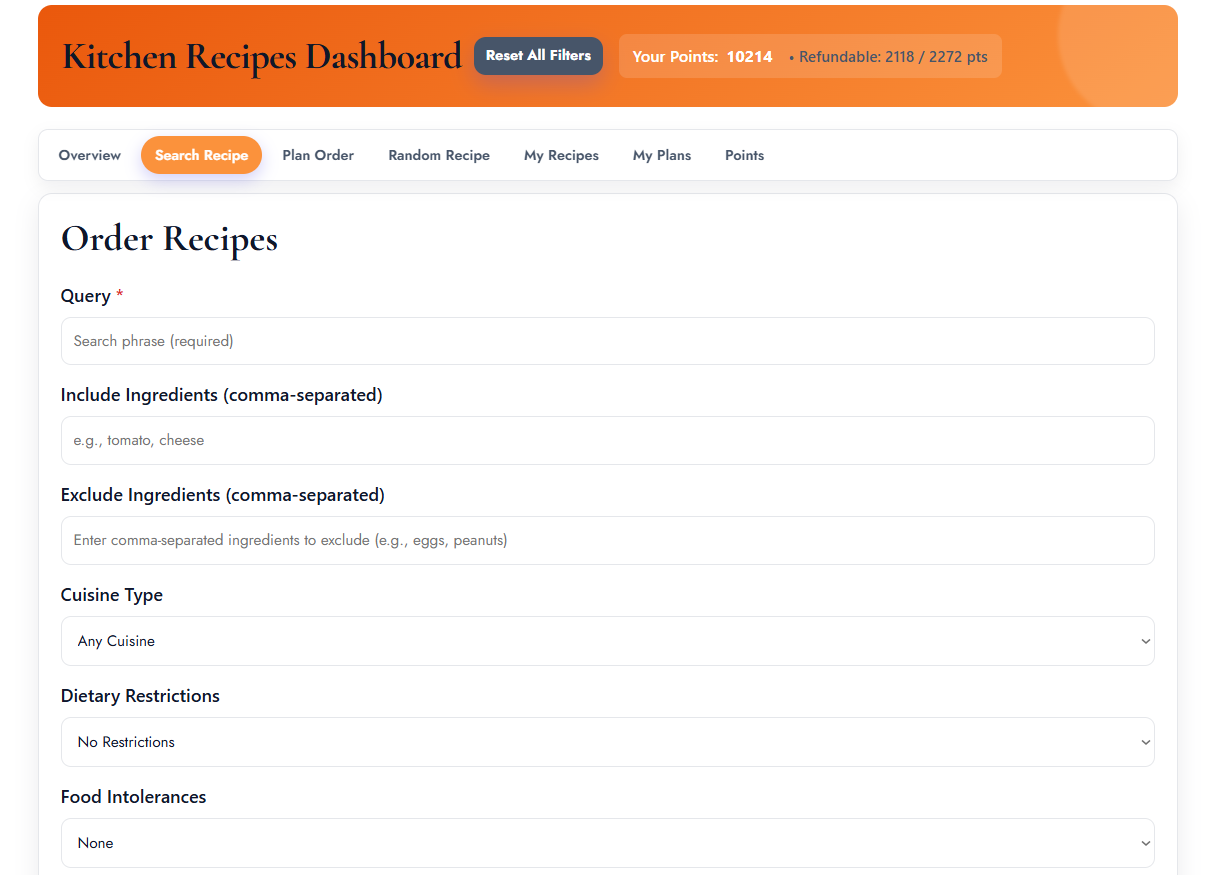
- Open the Search tab.
- Fill just a few key filters first (Cuisine, Diet, Max time). Add more if needed.
- Click “Search Recipes”. If valid results are found, points may be deducted.
- Browse recipe cards. Expand nutrition, ingredients, and instructions.
- Use “Load More” to see more results or reset filters to start over.
Hint: If results are too narrow, remove some filters. If they’re too broad, add one more filter at a time.
4.0) Recipe Card: What You See
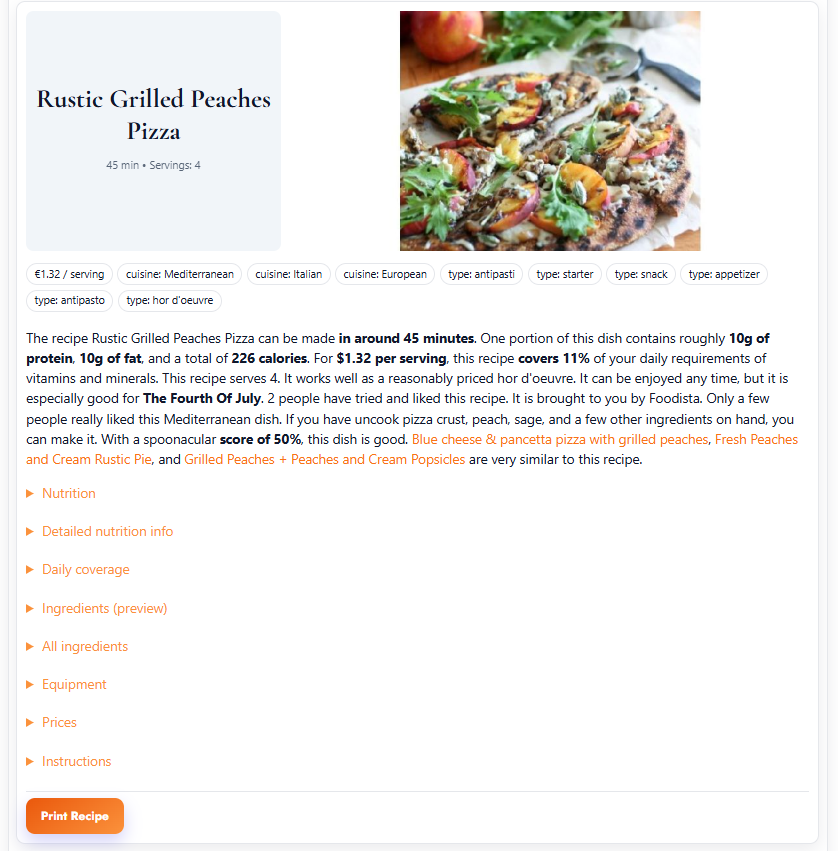
Each recipe result is presented as a card with expandable sections. Here’s what you can typically view:
- Description/Summary: A short overview of the recipe and what to expect.
- Nutrition: Base nutrition (calories, protein, carbs, fat). Some sites also show detailed micronutrients.
- Ingredients: A preview list and the full list with quantities. Use this as your shopping list.
- Daily Coverage: Percentage of daily recommended values (when available) to help you gauge nutritional balance.
- Pricing: Estimated cost per serving or per recipe (if price data is available).
- Instructions: Step‑by‑step directions for cooking and preparation.
- Equipment: Tools/kitchenware recommended for the recipe.
- Wine Pairing: Suggested wine matches (where provided).
Open and close sections to focus on what you need. Some sites offer a dedicated viewer in a new tab for easier reading and printing.
4.1) Shopping Lists
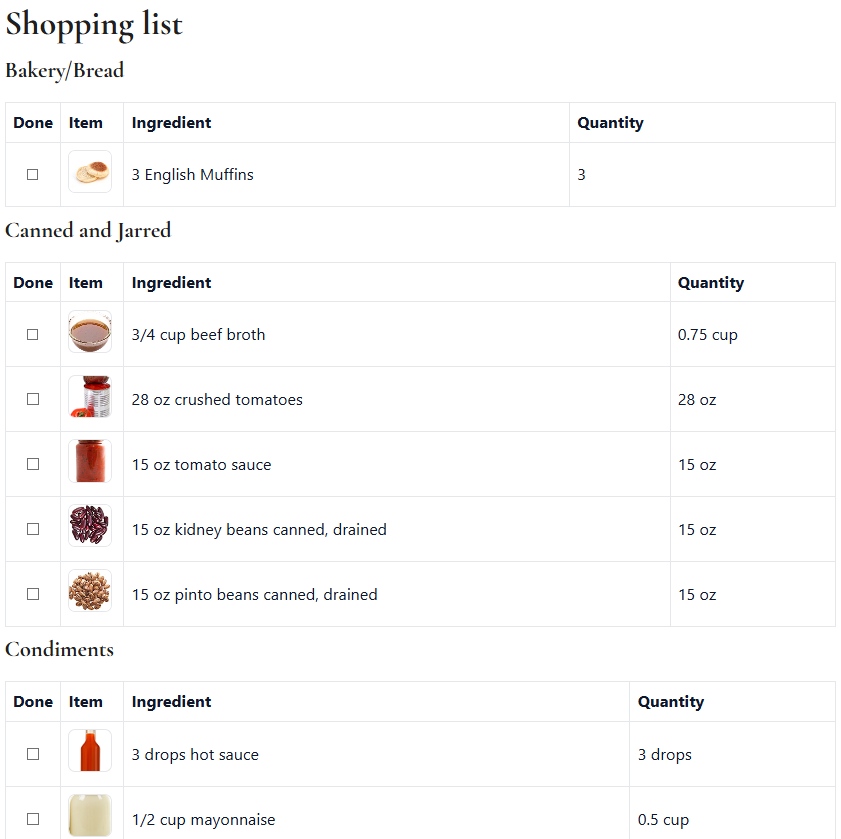
For many recipes and meal plans, you’ll see an ingredients section. Use it as a shopping list. Some sites provide a printable or exportable list (CSV/JSON) if print controls are enabled. If you don’t see a dedicated shopping‑list button, you can still print the recipe card or copy the ingredients section.
- Recipe ingredients: preview + full list.
- Meal plan: daily breakdown with aggregated items (where available).
- Export/Print: look for “Print” or “Export” buttons under the rendered content.
5) Order a Meal Plan
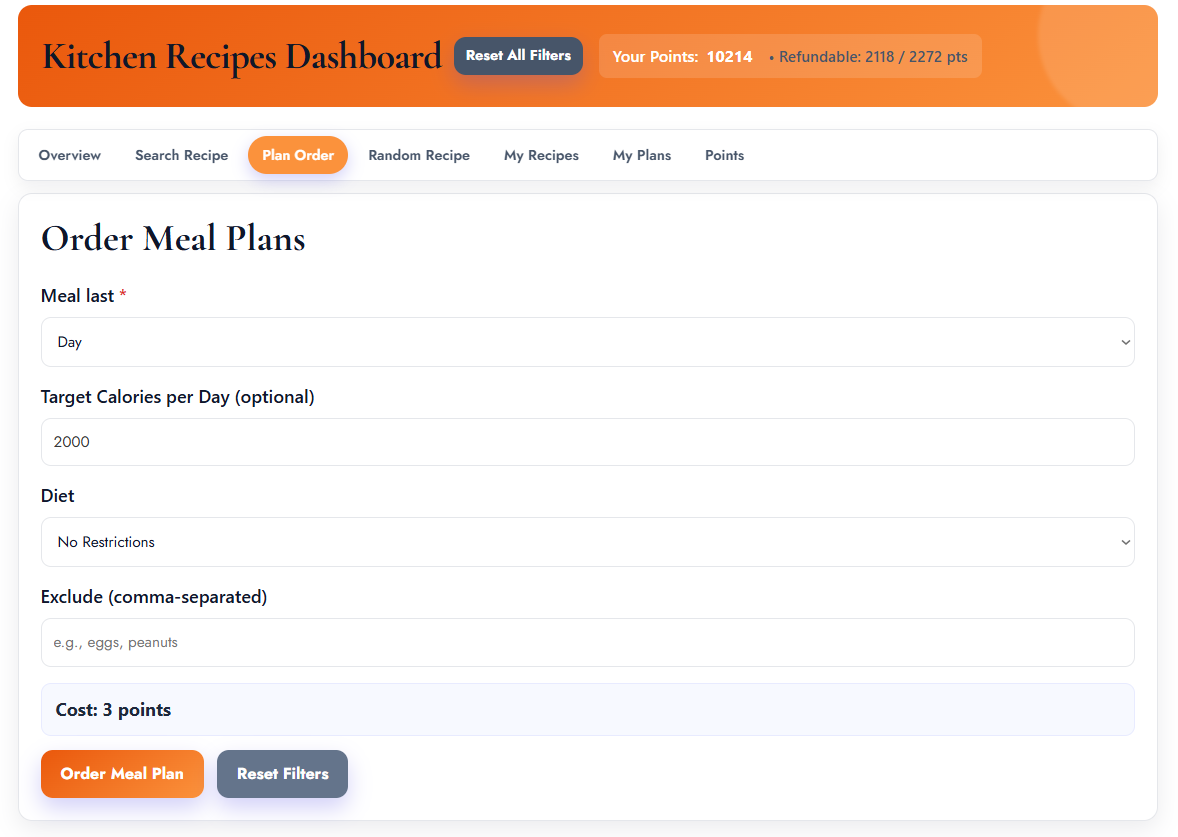
- Open the Meal Plans tab.
- Select the number of days (e.g., 3, 7, 14, 28) and set target calories per day.
- Optionally choose cuisine, diet, and include/exclude ingredients.
- Confirm the point cost, then click “Order Meal Plan”.
- View the generated plan below the form. If print controls are available, you can print or export.
6) Saved Items: My Recipes & My Plans
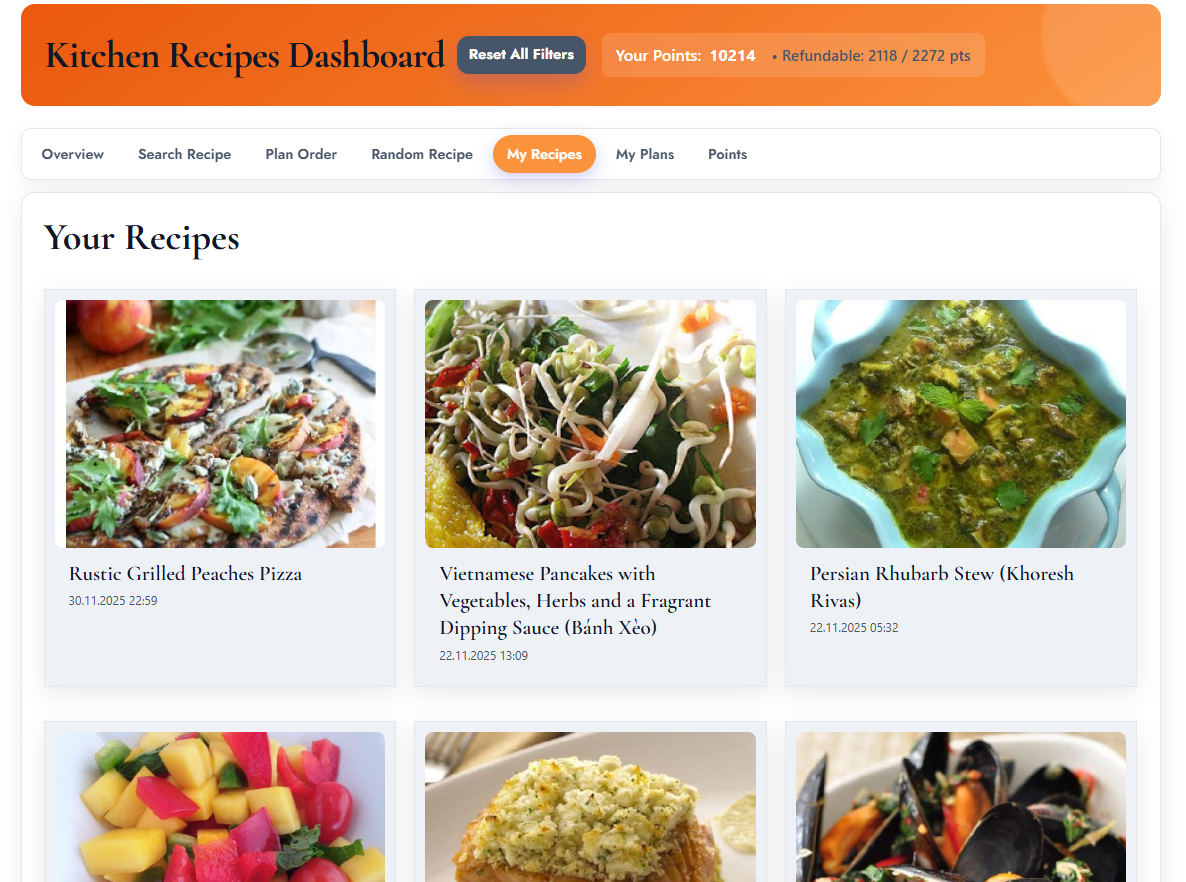
- My Recipes: your recent saved recipes. Click to expand details.
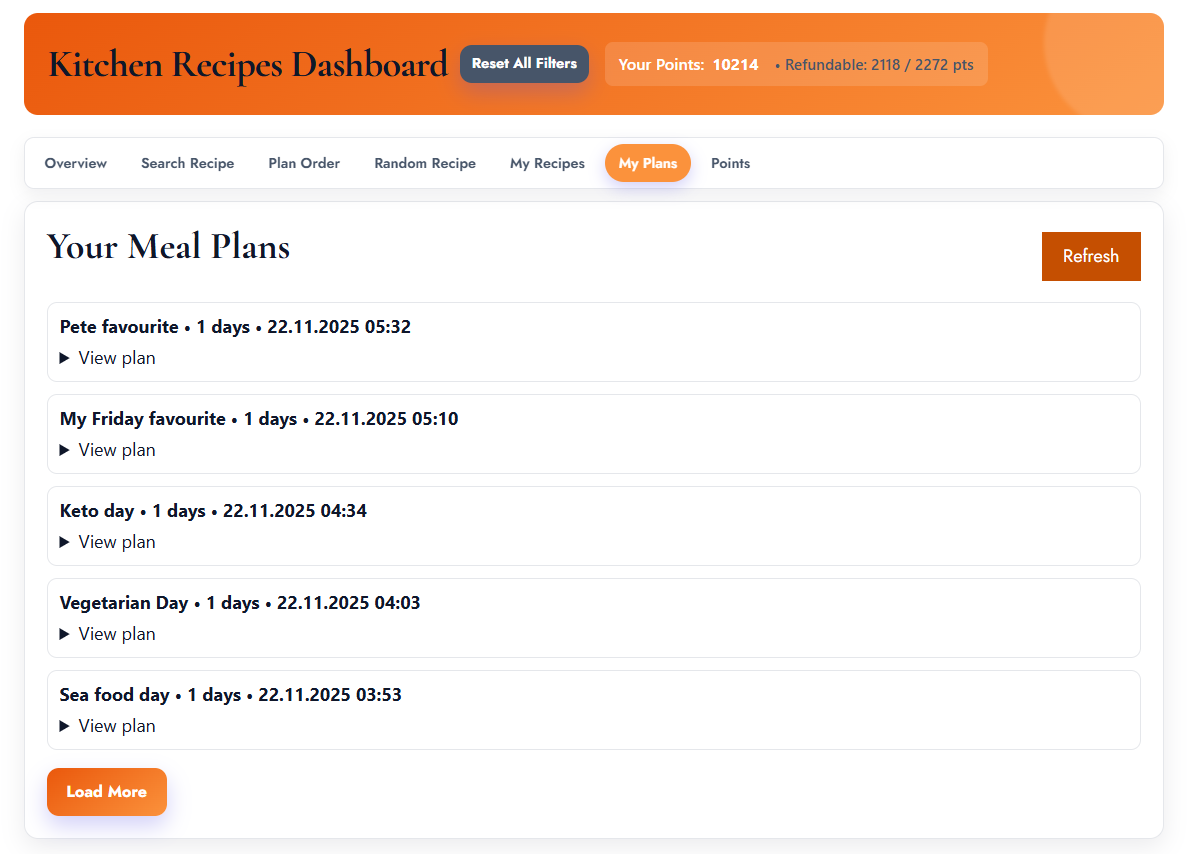
- My Plans: your saved plans. Click “View plan” to open details.
- Some sites open a separate viewer tab for easier reading or printing.
7) Account & Buying Points
- Check your current balance and recent transactions in your account area or Points tab.
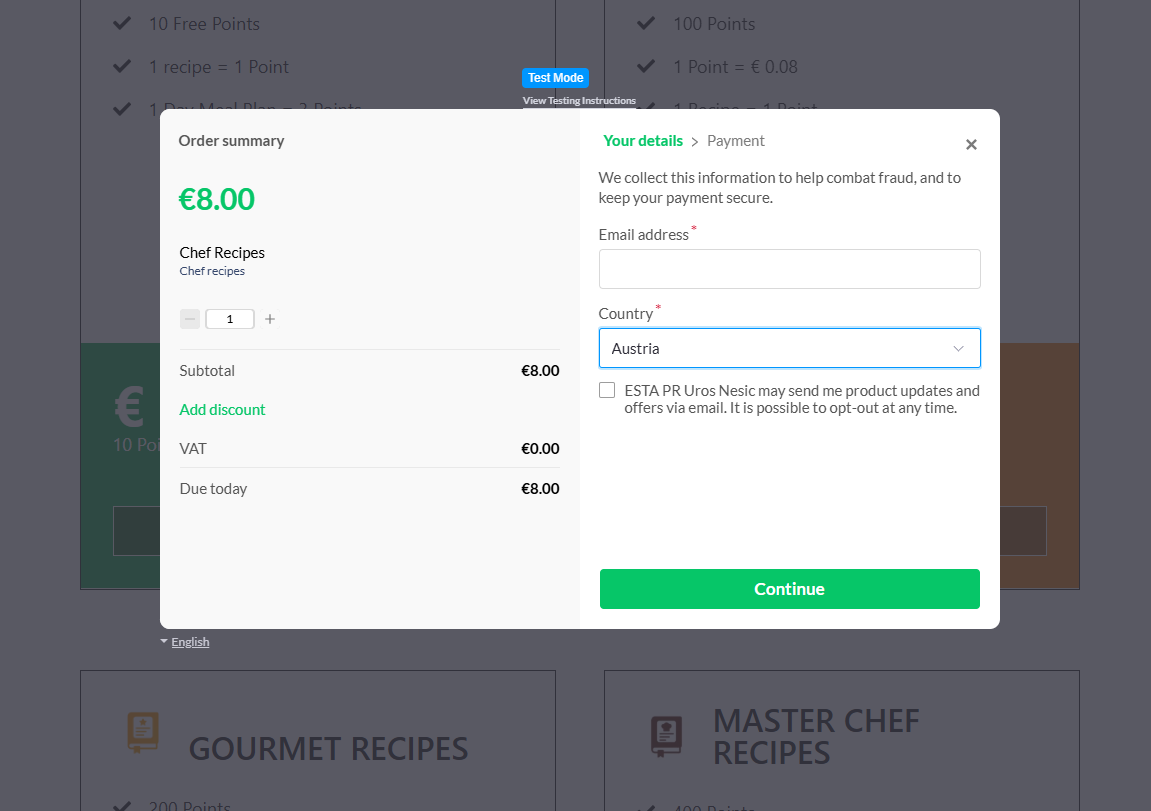
- To buy points, click “Buy points” on a package. A secure checkout opens.
- After a successful purchase, points are added automatically and you’ll receive a receipt email.
8) Printing & Export
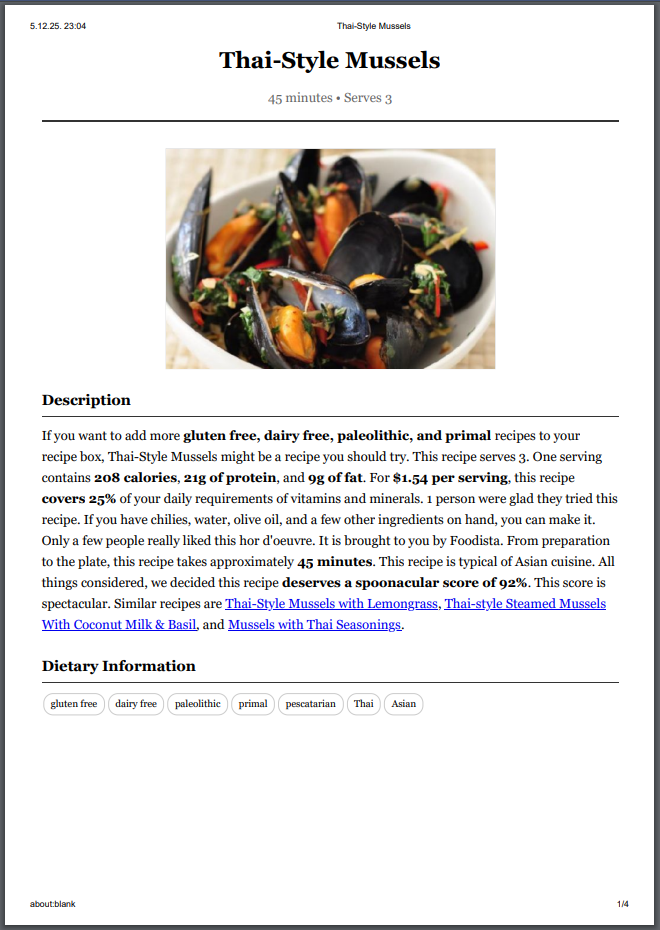
- Use your browser’s Print (Ctrl+P) to save pages or specific sections as PDF.
- If the site shows “Print” or “Export” controls under recipes or meal plans, use them for cleaner outputs.
- Enable “Background graphics” in the print dialog for best visuals.
9) Secure Payment with Paddle
Paddle provides a secure checkout to buy points. Payment details are handled by Paddle in an encrypted overlay or hosted page. After payment, your points are added automatically and you receive an email receipt. If the checkout doesn’t open, refresh the page or try again later.
- Secure processing: card data is entered on Paddle’s forms, not your site.
- Receipts: emailed to the address used during checkout.
- Support: if a charge looks incorrect, contact site support with your receipt ID.
10) Tips for Better Results
- Start simple. Add just a couple of filters, then refine.
- Use Title Match for specific titles/series.
- Only enable advanced nutrition filters if you really need them.
- Meal plans: set days and calories first, then fine‑tune cuisines/diets.
11) Troubleshooting & FAQ
- No recipes found: remove some filters and try again.
- Can’t buy points: packages may be temporarily unavailable; try later or contact support.
- Checkout doesn’t open: refresh the page and try again; ensure you’re logged in.
- Charged points but no result: random recipes auto‑refund invalid results; for searches, relax filters and retry.
12) Privacy & Cookies
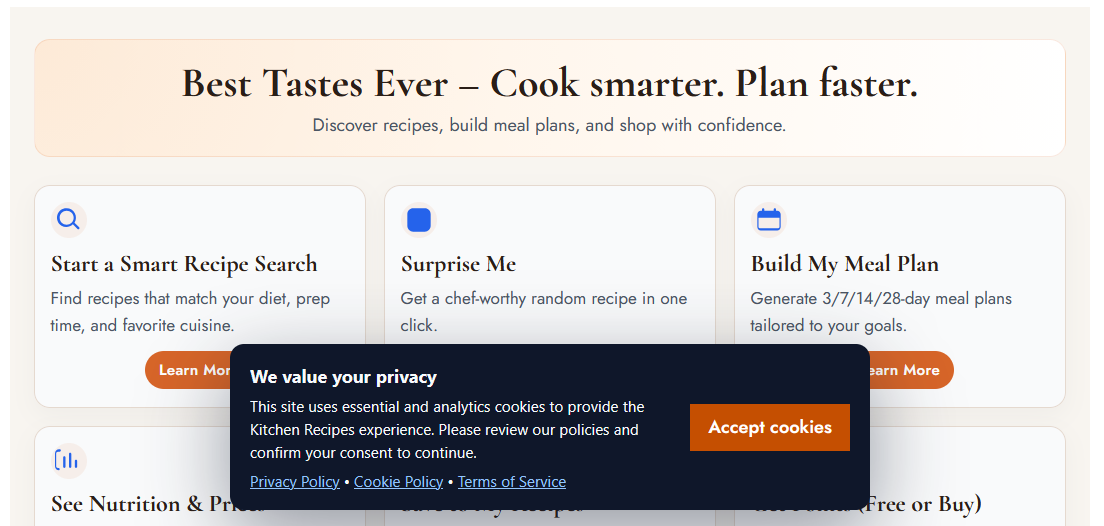
We use a privacy notice and cookie banner to explain data usage. You can review the policy from the links shown on the site.
12.1) Policies: Details & Contacts
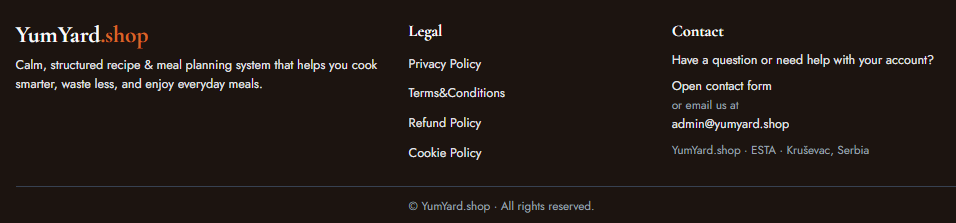
- Privacy policy: what data is collected (account, orders), why it’s used, and how it’s protected.
- Cookie policy: necessary cookies (login/session) and optional analytics/marketing cookies.
- Terms of service: acceptable use, refund rules for points, and service limitations.
- Contact: use the site’s contact page or the email listed in the policies for support or data requests.
Note: Links to these policies appear in the cookie banner or footer. If you need help with a purchase, include your receipt and the email used at checkout.
To save this page as a PDF, click the Print button above or use your browser’s Print menu and choose “Save as PDF”.
Advanced: Generate PDF via PowerShell + Edge (optional)
Run this command to export a PDF without opening the browser window (requires Microsoft Edge):
$html = "c:\\kitchen-recipes-pro-sa-sa-Paddle\\customer-tutorial.html"
$pdf  = "c:\\kitchen-recipes-pro-sa-sa-Paddle\\customer-tutorial.pdf"
Start-Process msedge.exe "--headless=new --disable-gpu --print-to-pdf=`"$pdf`" `"$html`""
If the path to Edge isn’t in PATH, try the full path:
$edge = "$Env:ProgramFiles (x86)\\Microsoft\\Edge\\Application\\msedge.exe"
Start-Process $edge "--headless=new --disable-gpu --print-to-pdf=`"$pdf`" `"$html`""
Happy cooking! 🍽️